Installing your first app and making it real

By Raviteja KNTSUpdated July 9, 2026
This is the one. Everything so far has been setup; now you run a real app on your own server and open it in your browser. We'll use Excalidraw, a whiteboard for sketching diagrams and ideas. You'll get what it's for the second it loads, which makes it a perfect first win.
Make a home for it
SSH into your server. Give the app its own folder and move into it, this keeps each app tidy and separate:
mkdir -p ~/apps/excalidraw
cd ~/apps/excalidraw
Write the compose file
Open a new file called docker-compose.yml with nano:
nano docker-compose.ymlType or paste in exactly this, then save with Ctrl+O, Enter, and exit with Ctrl+X:
services:
  excalidraw:
    image: excalidraw/excalidraw:latest
    container_name: excalidraw
    ports:
      - "3030:80"
    restart: unless-stopped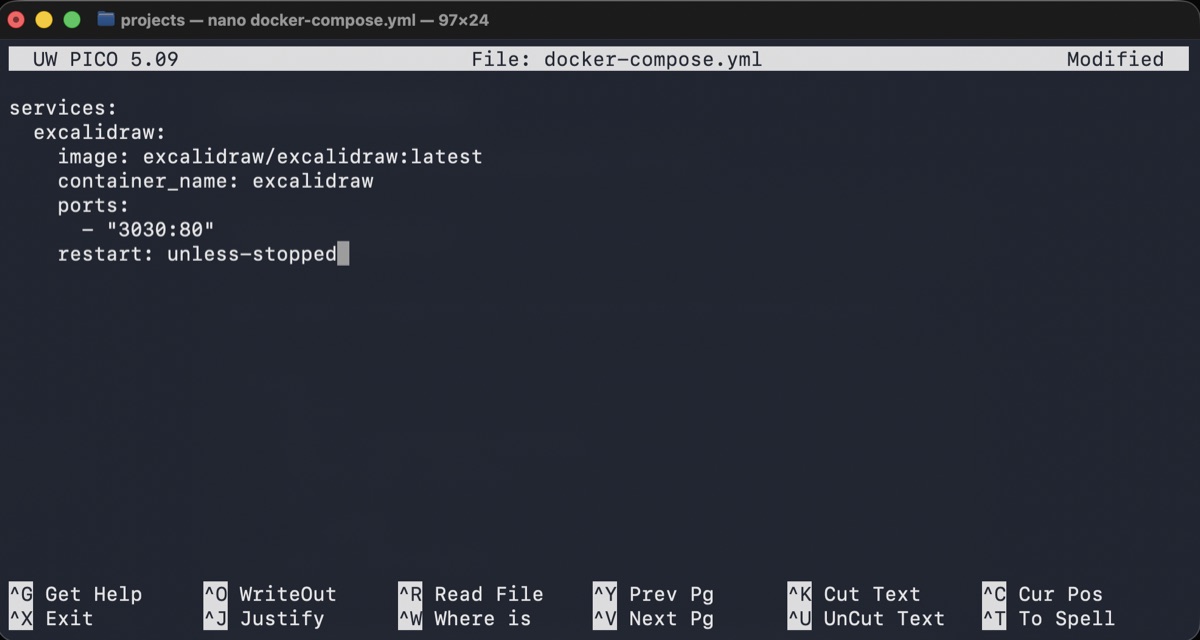
Don't worry about what every line means yet; the next lesson reads this file line by line. In short: it says which app image to run, and the ports line connects two doors. The right number is the port the app listens on inside its container, and the left is the port your server opens for it, the one you'll type in the browser. That's all Excalidraw needs, it's about as simple as an app gets.
Start it
One command brings it to life:
docker compose up -dDocker downloads the image the first time (give it a moment), then starts the container in the background. The -d just means "run it detached", so it keeps running after you close your terminal.
Open it
On any device on your home network, open a browser and go to your server's address followed by the port:
http://192.168.1.50:3030Swap in your own server's IP. That :3030 is the port from the compose file, it's how the browser knows which app on the server you want. Excalidraw's blank canvas should load, and you can start drawing straight away. That's it. You're running a self-hosted app.
If it didn't load
Nine times out of ten it's one of three things. Check the container is actually running with docker compose ps. Make sure you used the server's real IP, not localhost (that would mean "this device", not the server). And confirm you typed the port. If it's still stuck, docker compose logs shows what the app is complaining about, we'll get comfortable reading those next lesson.
One more you might hit: if the start command fails with an error like port is already allocated, something else on the server is already using 3030. Remember the two doors in the ports line: keep the app's side (80) as it is and change your server's side to something free, so "3031:80". Run docker compose up -d again and open :3031 in your browser instead.
You have a running app you followed blind. Now let's turn that into understanding and read the compose file line by line, so the next app isn't copy-paste but something you actually get.